
NTLM still appears inside many Active Directory environments. Even when Kerberos handles normal authentication, NTLM often surfaces through legacy applications, services, or fallback behavior. Before blocking anything, visibility matters.
The safest place to monitor NTLM usage is the domain controller. Every NTLM authentication ends there. Auditing on domain controllers provides full coverage without touching workstations or servers.
This article explains how to enable NTLM auditing on domain controllers only and how to read the resulting logs.
Why Audit NTLM First
Blocking NTLM without evidence creates risk. Auditing provides proof.
Auditing answers key questions.
- Who uses NTLM.
- Which device initiates authentication.
- Which account authenticates.
- How often NTLM appears.
With this data, enforcement decisions stay informed instead of reactive.
Scope and Design
Auditing stays limited to domain controllers.
Workstations stay untouched.
Servers stay untouched.
No authentication gets blocked.
This approach ensures zero operational impact while still collecting reliable data.
Group Policy to Create
Create a dedicated Group Policy Object linked only to the Domain Controllers OU.
Recommended name:
DC – NTLM Auditing Only
This policy exists for monitoring only. Enforcement settings remain out of scope.
Required Setting
Configure one setting and nothing else.
Path
Computer Configuration \ Policies \ Windows Settings \ Security Settings \ Local Policies \ Security Options
Setting
Network security. Restrict NTLM. Audit NTLM authentication in this domain
Value
Enable auditing for all accounts
This setting instructs domain controllers to log NTLM usage without denying access.
Settings to Avoid
Do not configure NTLM blocking settings in this policy.
Do not configure LAN Manager authentication level.
Do not configure Incoming NTLM traffic.
Those settings belong in workstation or enforcement policies.
Applying the Policy
Link the policy to the Domain Controllers OU.
Run gpupdate /force on one domain controller.
Wait for replication across remaining controllers.
Once applied, logging depends on Event Viewer configuration.
Enabling the NTLM Operational Log
NTLM audit events write to a dedicated log. This log often starts disabled.
On a domain controller
First Log
Open Event Viewer > Navigate to Applications and Services Logs > Microsoft > Expand Windows > NTLM > Operational
Right click Operational and select Enable Log.
Without this step, NTLM audit events never appear even when auditing stays enabled.
Key events
Event ID 8003 shows NTLM authentication allowed.
Event ID 8004 appears later when blocking gets enabled.
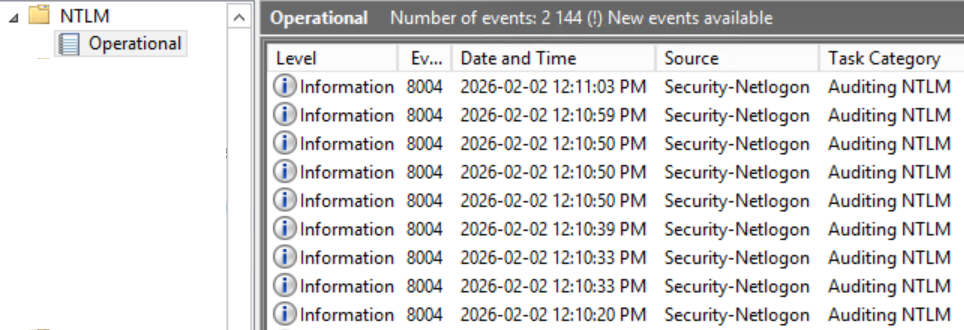
These events show source device, target server, account, and authentication details.
Second Log
Open Event Viewer > Path > Windows Logs > Security
Key events
Event ID 4624 for successful logon.
Event ID 4625 for failed logon.
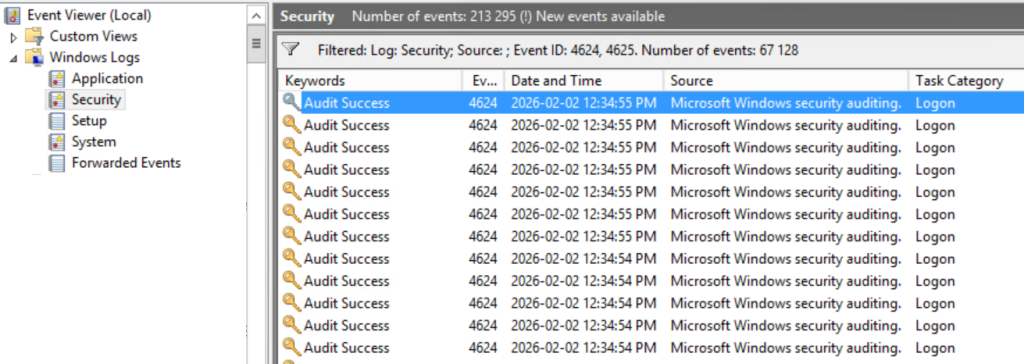
This log helps correlate NTLM usage with broader authentication activity.
Validating Auditing Works
After enabling auditing, force a test.
From a workstation
Access a network resource using an IP address instead of a hostname.
This often triggers NTLM authentication.
Return to the domain controller logs.
NTLM Operational events should appear.
Security log entries should reference NTLM.
If logs appear, auditing works.
If logs stay empty, auditing never applied or the operational log remains disabled.
What Clean Logs Mean
After validation, quiet logs signal success.
No NTLM usage means Kerberos handles authentication.
Occasional NTLM entries highlight legacy behavior.
Repeated entries reveal systems needing remediation.
Auditing turns assumptions into evidence.
Next Steps
After several days of collected data, decisions become simple.
Legacy dependencies stand out.
Ownership becomes clear.
Enforcement planning gains confidence.
Auditing first creates a safe foundation for future NTLM reduction without disruption.