
In Microsoft 365, profile pictures are synchronized across the entire ecosystem—appearing in Outlook, Teams, SharePoint, and Microsoft Entra ID (formerly Azure AD). By default, end users can upload or change their profile photos freely.
For IT administrators trying to maintain a consistent visual identity or prevent inappropriate images, restricting photo updates is a crucial administrative task.
This article covers why organizations restrict profile picture updates, where users typically change them, and the step-by-step method to lock down photo edits using the Microsoft Graph API.
Why Restrict Profile Photo Updates?
Allowing employees to manage their own profile images can lead to inconsistency. Restricting this capability allows IT teams to:
- Maintain Brand and Corporate Identity: Ensure all employee pictures meet professional standards (e.g., Company Logo).
- Prevent Overwriting Approved Assets: Prevent users from overwriting official image uploaded
- Ensure Organization-Wide Consistency: Maintain uniform photo quality across all connected Microsoft apps and services.
How to Restrict Photo Updates Using Microsoft Graph API
Rather than outright disabling photo changes, Microsoft 365 allows administrators to restrict photo updates to specific Entra ID administrative roles.
Instructions
1.Sign in to Graph Explorer:
Prerequisite: Global Admin or People Admin role.
Navigate to Microsoft Graph Explorer and sign in using an account with the Global Administrator or People Administrator role. Accept required permissions if prompted.
2.Configuration:
On the Main screen on the left change to the following options:

Define Allowed Admin Roles:
In the Request Body tab, paste the JSON configuration specifying which administrative roles are permitted to edit profile photos:
The Below Example has the User Administrator and Global Administrator.
{
  "source": "cloud",
  "allowedRoles":
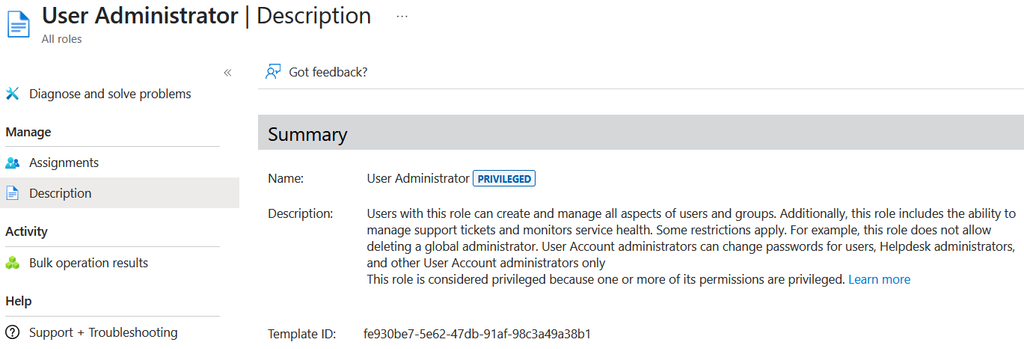
    "fe930be7-5e62-47db-91af-98c3a49a38b1",
    "62e90394-69f5-4237-9190-012177145e10"
  ]
}
The IDs for the Administrator Roles can be found in the following Location:
Entra Admin Center – Roles and Admins – Choose the Admin Profile – Description
The Template ID is the AllowedRoles that can be used.
3. Execute the Request:
Click Run query.
Troubleshooting: If you receive a 403 Forbidden error, open the Modify Permissions tab, select Consent for the PeopleSettings.ReadWrite.All permission, approve it, and re-run the request.

How to Revert the Changes
If you ever need to restore the default setting—allowing all users to update their profile pictures again—re-run the PATCH request with an empty array for allowedRoles:
{
  "source": "cloud",
  "allowedRoles": []
}